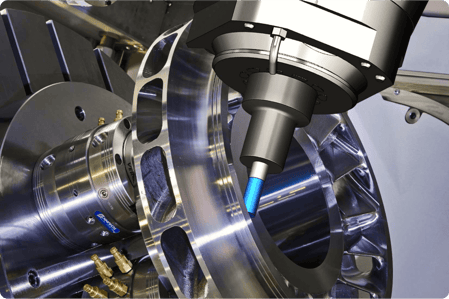
  • You make it, we simulate it.

    Book your free demo today.
    Hero image

    Support:

    Your one-stop software support shop.

    Whether you need some software support, access to the latest version of Vericut, a product licence, or just some of our industry-leading technical advice, you’re in the right place.

    Consider Vericut’s support hub as your one-stop shop for all things, well, Vericut.

    Download icon-1
    Version 9.6.2

    Seeking the latest version of Vericut?

    cnc-machin
    man-typing
    search-icon

    Looking for a licence?

    Want to apply for a new licence, update an existing licence, or transfer your licence to another platform or system? We can help.

    recycle-icon

    Need a software update

    Running an older version of Vericut and want to upgrade? No problem.

    There’s a tech tip for that.

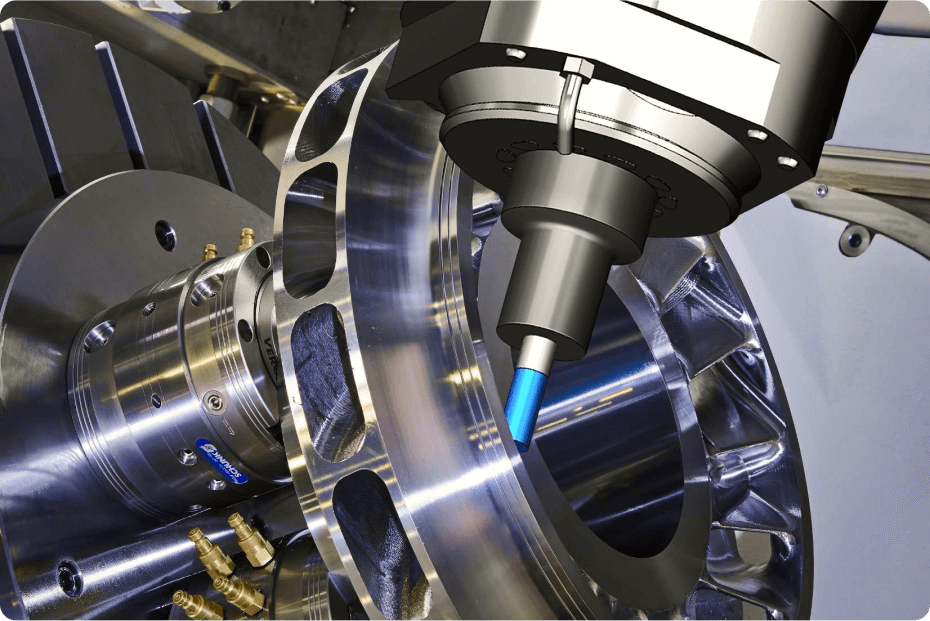
    Our handy Tech Tips video series will help you get the most from the software’s latest features, and configure your Vericut CNC simulation package for long-term success.
    cnc-machin
    video-btn
    tool Collision
    12000
    RPM

    Frequently asked questions

    01.
    How do I access help? 

    Vericut has an extensive interactive Help Library, which is available 24 hours a day, 365 days a year. Simply click here to access the Help Library and select the software and/or module you need help with from the list. 

    Bonus tip: Press F1 in any Vericut window to receive help on that window!

    02.
    Where can I find the system requirements for Vericut? 

    Great question! A full breakdown of Vericut’s system requirements can be accessed here. 

    We highly recommend maintaining a steady internet connection to ensure you always receive emails and notifications about installations, system updates, and support.

    03.
    Where can I access the latest installation guide?

    You’ll find the latest installation guide right here. And, if you require a post-installation guide, you can find them linked below.

    04.
    I need help after installation. What should I do?

    We offer a wide range of after-installation guides to help you integrate your CAD/CAM interfaces with Vericut effectively.

    05.
    Where can I find the latest Vericut release notes?

    We have a range of release notes for all the major Vericut programs and modules. We’ve linked the most commonly requested release notes below. 

    06.
    Where do I request a licence?

    Whether you’re looking to request a new software licence or to transfer a pre-existing licence, we’ve got you covered.

    07.
    Where do I download the latest version of the software?

    You can download the latest version of Vericut here.

    08.
    How can I install an ICAM licence?

    Our online portal can help you locate the right ICAM installation method for your system. If you’re still having trouble installing your ICAM licence, fear not; our expert team can assist. Contact them here.

    09.
    I can’t see my question answered here - what should I do?

    If our FAQs haven’t provided you with the answer you’re looking for, fear not. Our expert team are readily available to support you. Get in touch with them today.

    file-upload

    Want to upload a file?

    Want us to see exactly what you’re seeing?
    Simply upload a file here, and our technical experts will get back to you in a flash.

    VA Icon

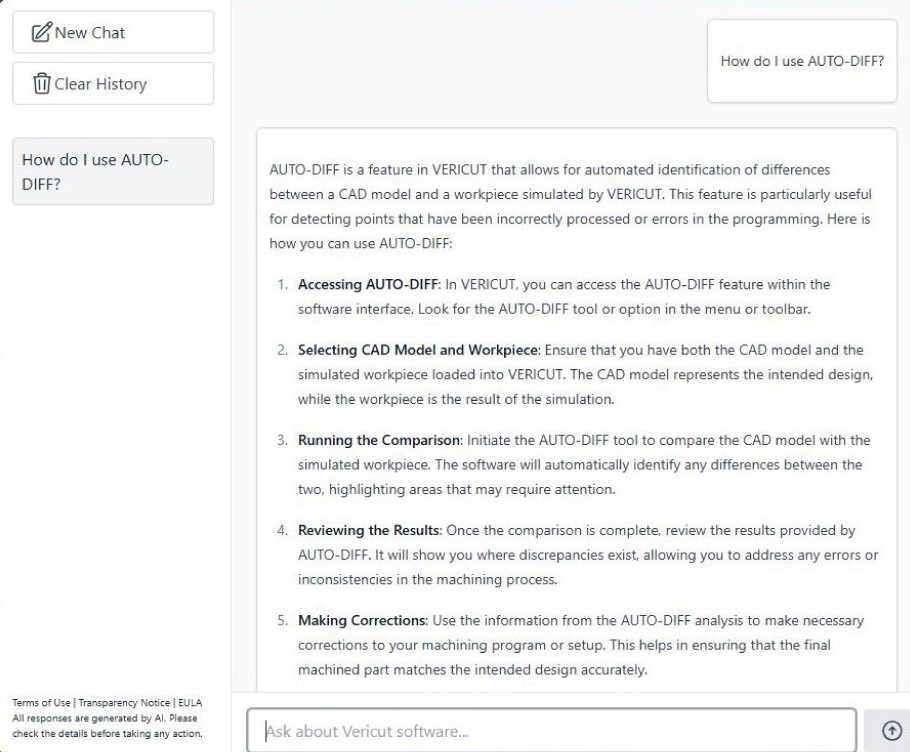
    Get Technical Support. Ask
    Vericut Assistant!

    Ask VA in Vericut 9.6 and get your answer instantly.

    VA-Web-1920x1080 copy-2


    Vericut's UK-based expert team are here to help you get the most out of your software.


    Vericut technical support representatives are available:

    Phone:
    +44 (0)1453 488121

    E-mail:
    support.uk@cgtech.com


    Composites technical support representatives are available:

    Phone:
    +44 (0)1453 488121

    E-mail:
    support.uk@cgtech.com

    Have Vericut 9.6 installed?

    You can get step by step guidance and answers to “how to” questions right inside the software with Vericut Assistant. Just click the VA Icon icon in the upper-right corner of the software.